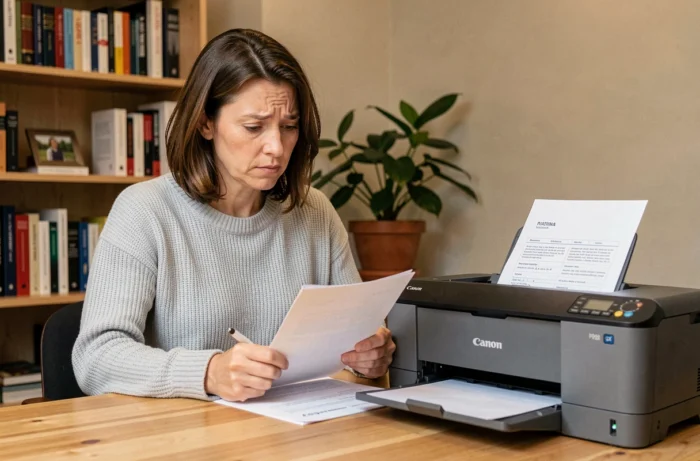
When printing from the PC, the Canon Pixma responds, the paper advances, and the result comes out with white stripes or half-erased text. Before ordering a new print head or increasing the cleaning cycles, a few quick checks can often restore acceptable quality. Printing issues on Canon Pixma follow recurring patterns, and most can be resolved without tools or special skills.
Outdated Canon Pixma Driver: The Invisible Problem After a System Update
We rarely think about the driver when print quality deteriorates. The usual reflex is to clean the nozzles. But when the problem appears right after a Windows or macOS update, the driver becomes the prime suspect.
Canon specifies that drivers depend on the operating system and its exact version. A driver that worked yesterday may become incompatible after a minor system update. The typical symptom: the printer is detected, the document goes into the queue, but nothing comes out, or the result is truncated.
The procedure is simple. Go to the Canon support page corresponding to your specific model (not a neighboring model), download the driver suitable for the current version of the system, and reinstall it properly. If using a network connection, it is also necessary to check that security software is not blocking the ports needed for communication between the PC and the printer.
Finding a solution to Canon Pixma printing problems often involves a reset combined with the correct driver, which avoids unnecessary hardware manipulations.
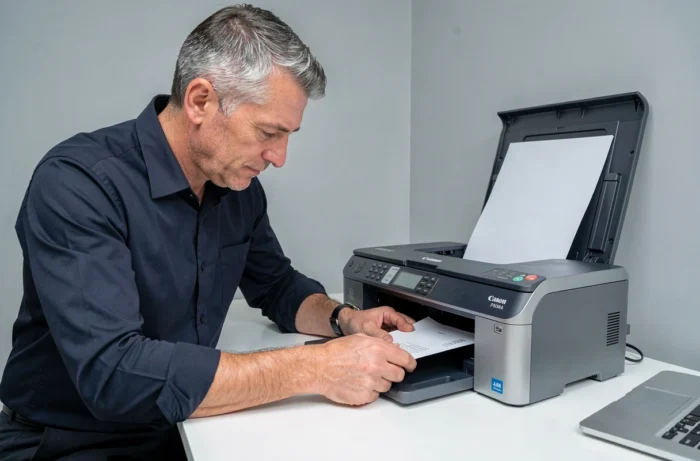
Cleaning Canon Pixma Nozzles: When to Stop Before Making the Problem Worse
Cleaning the nozzles is the first reflex, and it’s normal. When the print comes out with missing lines or absent colors, we initiate a cleaning cycle from the printer menu. The first cycle is relevant. The second one too. Beyond that, we enter a zone where the remedy can create a new problem.
The Trap of Repeated Deep Cleaning
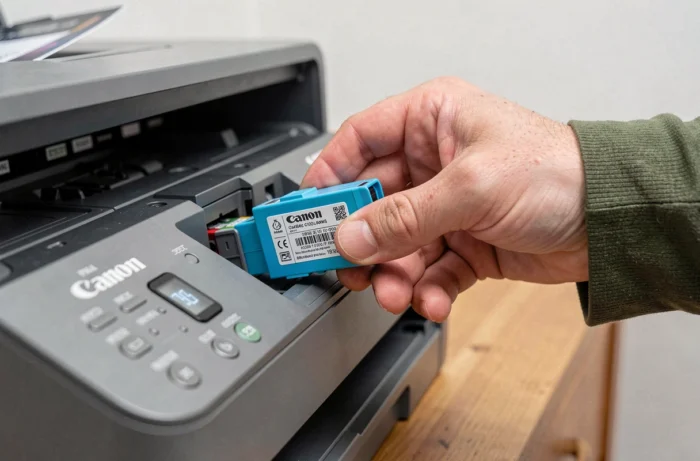
Each cleaning cycle consumes ink and sends residues to an internal receptacle. On models equipped with a maintenance cartridge, a full receptacle completely blocks printing. The printer then refuses to operate until this part is replaced, and the error message does not always clearly mention the cause.
Before initiating a deep cleaning, print a nozzle test page (accessible in the maintenance settings). If the test pattern shows missing segments in only one color, the problem likely comes from that cartridge or that section of the print head, not the entire system.
- Run a standard cleaning, then print a test pattern to compare before and after.
- If the pattern does not improve after two standard cycles, wait several hours before trying again (the ink needs time to soak the dried nozzles).
- Only resort to deep cleaning once, as a last resort, and check the condition of the used ink receptacle afterward.
- If no improvement appears after a deep cleaning, the problem is likely hardware-related (print head to be replaced, depending on the model).
Paper and Print Settings: The Adjustments We Forget to Check
A blurry or smeared print is not always a print head issue. We load photo paper into the tray, start the print, and the result is disappointing. A common cause: the type of paper selected in the driver does not match the paper actually loaded.
When the driver is set to “plain paper” while using photo paper, the printer deposits too much ink and drying is insufficient. The opposite causes pale colors and a lack of density. This adjustment mismatch is responsible for a good portion of failed photo prints on Pixma.
Concrete Checks Before Every Photo Print
Open the print properties from the application, not from the system’s general settings. The media type must exactly match the loaded paper. On models with two trays (front and rear), the correct paper source must also be selected, to avoid jamming or feeding from the wrong tray.
The paper size deserves the same attention. A mismatch between the declared size and the actual size causes uneven margins or partial prints. On some Pixma models, the rear tray accepts sizes that the front tray rejects, adding a source of confusion.
Canon Pixma Not Detected on Network: Troubleshooting Wi-Fi Connection
The printer is on, connected to Wi-Fi according to its screen, but the PC cannot find it. This scenario regularly occurs after a box change, a modification of the Wi-Fi password, or a router restart that assigns a new IP address to the printer.
The first reflex: check that the printer and the computer are on the same network (same SSID). Recent boxes often broadcast a 2.4 GHz network and a 5 GHz network. Most Pixma printers only connect on 2.4 GHz, while the PC may automatically switch to 5 GHz.
- Restart the Wi-Fi setup from the printer panel to force a new IP address assignment.
- Temporarily disable the firewall or antivirus to check if they are blocking network detection.
- Use a USB cable as a fallback solution to confirm that the problem is indeed network-related and not the printer itself.
Canon also recommends checking that the IJ Scan Utility, necessary for scanning on multifunction models, is properly installed via the complete driver package and not downloaded separately. An incomplete installation package can prevent network detection even if the print driver works.
The majority of printing problems on Canon Pixma can be resolved by cross-checking three verifications: the driver suitable for the system, the actual condition of the nozzles (without excessive cleaning), and the match between the loaded paper and the software settings. When these three points are in order, persistent failures point to a hardware component that needs replacement, which remains the exception rather than the rule.