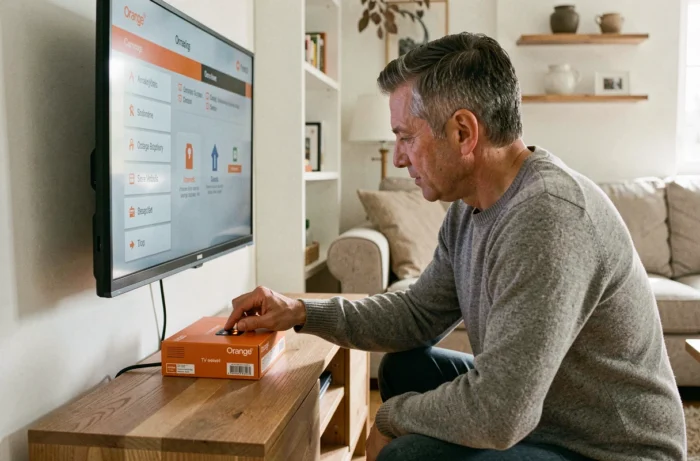
Resetting an Orange TV decoder does not produce the same result for every model or type of reset. UHD decoders supplied with Livebox 5, 6 and 7 offer two reset levels accessible from the menu, while the Home Cinema Decoder, which runs on Android TV, follows a different procedure.
Before starting, identify your device precisely to avoid following the wrong steps.
Restarting or resetting an Orange decoder: what each operation erases
Confusing these two operations is the first source of frustration. Restarting cuts the power and then restores it: no settings are lost, favorite channels remain in place, and so do streaming app credentials.
A partial or full reset restores some or all factory settings. On a UHD decoder, a partial reset preserves recordings and streaming credentials, while a full reset erases everything and requires a new search for DTT channels.
| Operation | Favorite channels | Recordings | Streaming credentials | Network configuration |
|---|---|---|---|---|
| Restart (unplugging) | Preserved | Preserved | Preserved | Preserved |
| Partial reset (UHD) | Erased | Preserved | Preserved | Preserved |
| Full reset (UHD) | Erased | Erased | Erased | Erased |
| Home Cinema reset | Erased | Erased | Erased | Erased + re-pairing required |
The table shows that choosing a reset level comes at a direct cost in reconfiguration time. Start by unplugging the device for a few minutes: this resolves most display issues (black screen, frozen picture, pixelation) without losing anything.
If you need to reset your Orange TV decoder after an unsuccessful restart, the steps below explain what to do for each generation of device.
Resetting an Orange UHD decoder: using the menu
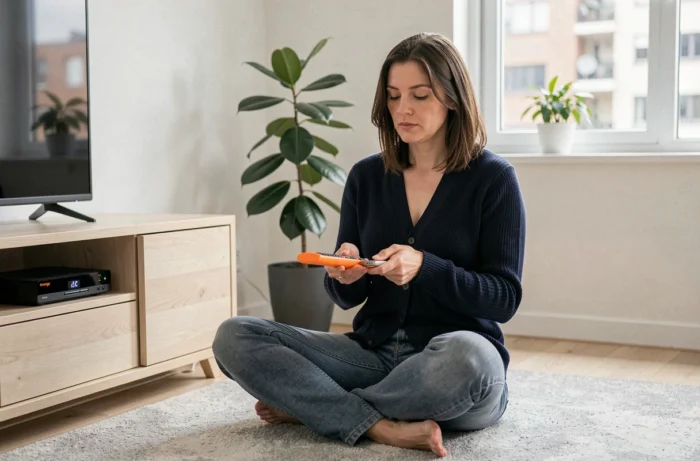
UHD decoders paired with Livebox 5, 6 and 7 are managed through the TV interface. The process uses the remote and the Settings menu.
- Press the Menu button on the remote, then select the cog in the top-right corner to open Settings
- Go to Settings, then choose a partial or full reset depending on which data you want to keep
- Confirm your choice: the decoder restarts automatically and begins the restoration process
A partial reset is sufficient in most cases. It fixes persistent display errors and interface freezes without requiring you to re-enter your Netflix, Disney+ or Prime Video account details.
A full reset is only necessary if the decoder remains frozen after a partial reset, or before returning the equipment to Orange. In this case, all factory settings are restored, and a new search for DTT channels is required after restarting.
Older Orange decoder: resetting without menu access
On models older than the UHD decoder (TV Decoder 4, Livebox Play), resetting does not always involve the graphical interface. There are two methods, depending on the remote supplied.
Physical button on the device
The P- button on the front of the decoder starts a hardware reset. Hold it down for several seconds until the indicator light flashes. The decoder then restarts in initial setup mode.
Button sequence with a white remote
On older models supplied with a white remote, the blue-yellow-blue combination triggers a reset. This sequence is not shown on the decoder screen, so you need to know it in advance. Once confirmed, the device returns to its factory settings.
In both cases, favorite channels are erased and the setup process starts again from the beginning.
Orange Home Cinema Decoder: a more extensive reset
The Home Cinema Decoder runs on Android TV, so its reset process differs from that of standard UHD decoders. Orange offers three ways to reset it:
- From the decoder’s Android TV settings, under System, then Reset
- Through the maintenance menu, accessible when the device starts up
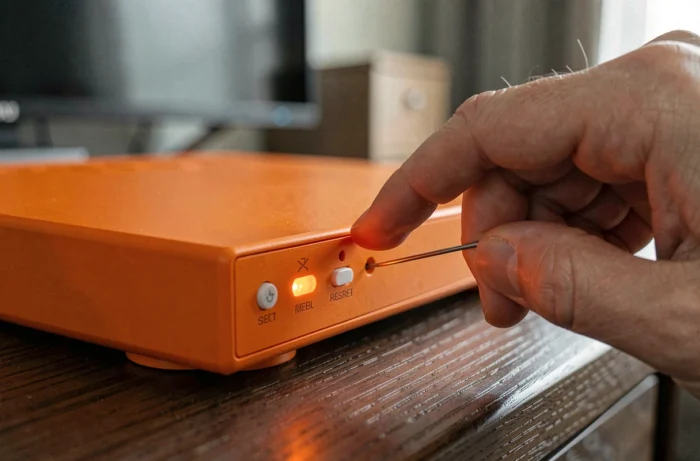
- Using the physical Reset button on the back of the device
After the reset, you must complete the entire setup process again: connect via Wi-Fi or Ethernet, link your Orange account, and configure your apps. Orange also notes that the Bluetooth remote must be manually re-paired, adding a step that is not required with standard UHD decoders.
If surround speakers are connected to the Home Cinema Decoder, they will also be unpaired. Reconnect them one at a time after the reset, following the instructions in the device’s audio settings.
When resetting an Orange decoder doesn’t solve the problem
A reset only affects the decoder’s software. If the problem is with the connection between the Livebox and the TV device, resetting it will make no difference.
Before concluding that there is a hardware fault, carry out a few checks: make sure the Livebox is properly synchronized (the internet light is steady), unplug any powerline adapters that may be degrading the signal, and check that the Orange TV card is correctly inserted in its slot.
Exchanging the decoder at an Orange store is the last resort if the device stops responding completely after a full reset and a restart of the entire setup. You will need to bring the faulty equipment and a form of ID.